Demo: Bucket Painting
The Bucket Painting preset demonstrates permanent dynamic canvas painting, turning the motion of a suspended paint bucket into mesmerizing geometric spirograph artwork.
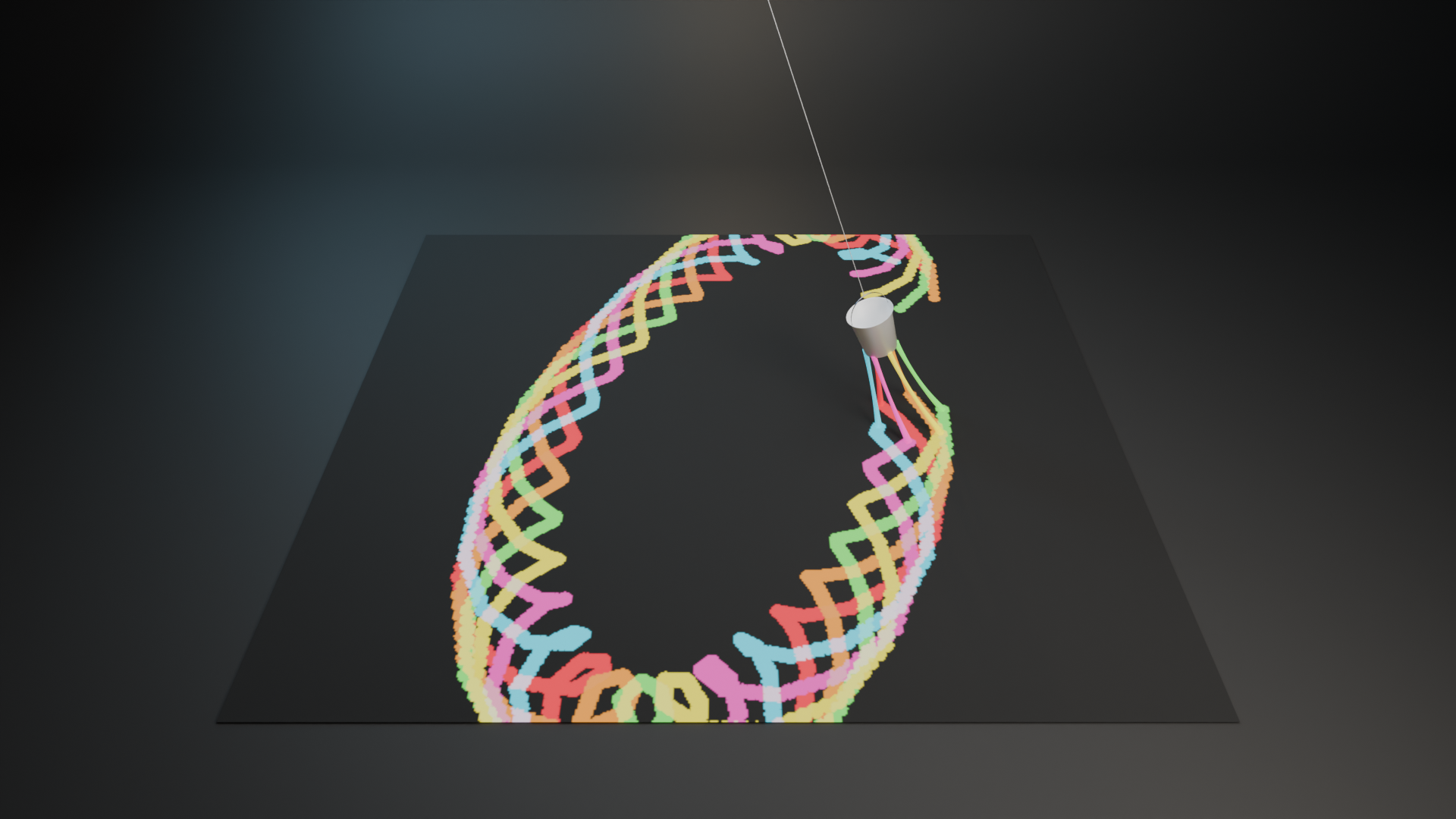
Overview & Visual Concept
Inspired by kinetic pendulum art performances, this setup simulates a suspended paint bucket swinging and spinning high above a giant dark floor canvas:
Swinging & Spinning Bucket: Suspended from a ceiling cable, the bucket swings in smooth, looping elliptical paths while spinning around its vertical axis.
Intricate Spirograph Patterns: As the swinging and spinning motion combine, the bucket naturally paints complex geometric rosettes, petals, and looping curves across the floor.
Six Colorful Paint Streams: Six nozzles around the bucket rim (Red, Cyan, Pink, Yellow, Green, and Orange) pour vibrant liquid paint down toward the canvas.
How Reactive Surface FX Powers This Setup
1. Real-Time Dynamic Canvas (GPU Compute)
The floor is set up as a Dynamic Texture Canvas (TEXTURE_CANVAS) at 2048 × 2048 resolution. Using hardware-accelerated GPU Compute, Blender evaluates the paint strokes directly on your graphics card in real time, maintaining fluid 60+ FPS viewport playback.
2. Continuous Stroke
With Continuous Stroke enabled, Reactive Surface FX automatically connects contact points between animation frames with smooth brush stamps. This guarantees unbroken, silky ribbons of paint with zero gaps or stuttering, even when the bucket accelerates through high-speed swings.
3. Permanent Painting (No Fade)
Unlike phosphor decay trails that fade away over time, this demo uses Permanent persistence mode (persistence_mode = "PERMANENT"). Every stroke permanently accumulates on the floor canvas, building up a rich, layered multi-colored artwork from frame 1 to the end of the animation.
4. Procedural Paint Streamlines
Between the bucket nozzles and the floor, procedural liquid streamlines dynamically bridge the gap. As the bucket rises and dips, the streams stretch and sag naturally, flaring outward at the floor contact point to give the appearance of liquid paint meeting the surface.
5. Rich Paint Color & Gloss Transfer
Beneath each streamline tip, a proximity driver transfers its exact color and glossiness onto the floor using PBR Material Transfer. Smooth edge falloff gives every paint line soft liquid edges that look like fresh acrylic paint.
How to Use & Customize
Open the Reactive Surface FX sidebar (N panel) and scroll down to Demo Setups.
Select Bucket Painting from the dropdown.
Click Add Demo Setup.
Press Spacebar to start playback and watch the painting emerge in real time!
Tip
Change Paint Colors: Select any of the six nozzle driver objects in the Outliner and edit their materials to customize your color palette.
Adjust Detail: In the Reactive Display Simulation panel, try switching the canvas resolution to 4096 × 4096 for ultra-sharp 4K renders.
Toggle Continuous Stroke: Turn off the Continuous Stroke checkbox in the sidebar if you want to see individual stroboscopic paint droplets instead of solid lines.