Quickstart Guide
To try it out immediately, use the built-in demo setups: Demo Setups.
To try it out manually, follow these steps to create your first reactive display surface and proximity driver:
Step 1: Create a Display Target Mesh
In the 3D Viewport, press Shift+A and choose (or ).
If using a Plane, switch to Edit Mode (Tab), right-click and choose Subdivide, setting the number of cuts to
15or20.Return to Object Mode (Tab).
Ensure your mesh is the active selected object.
Step 2: Initialize Reactive Display
Press N to open the sidebar and click the Reactive Surface FX tab.
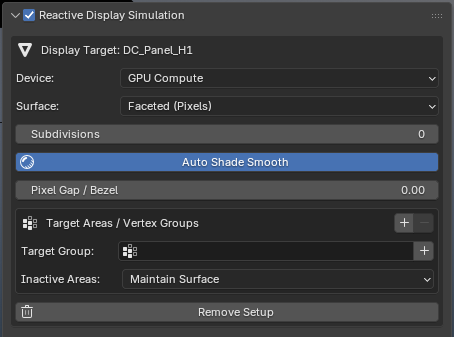
In the Reactive Display Simulation panel, click Setup Display on Active Object.
Reactive Surface FX will automatically:
Create the procedural display modifier stack.
Attach the internal
display_coloranddisplay_distattribute data-bus.Non-destructively inject shader emission nodes into the object’s active materials.
Tip
The Device setting defaults to GPU Compute for hardware-accelerated real-time simulation. You can switch between Faceted (Pixels), Smooth Vertices, or Dynamic Texture Canvas (with Continuous Stroke) at any time in the setup panel.
Step 3: Create a Proximity Driver
Press Shift+A and add an (or Monkey / Suzanne).
Scale the sphere down (S --> 0.4) and position it slightly above the display plane.
With the Sphere selected, hold Shift and select the Plane.
Press Ctrl+P and choose Set Parent To –> Object.
Tip
By default, Driver Source is set to Child Objects. Any mesh parented to the display target automatically acts as a proximity driver! You can also use a dedicated Collection if you prefer not to parent objects.
Step 4: See Reactive Illumination in Real Time
Switch your 3D Viewport shading mode to Material Preview or Rendered (Z --> Material Preview).
Select only the Sphere driver.
Grab and move the sphere around (G).
As the sphere approaches the surface within the Proximity Radius (default
0.5m), the surface faces dynamically illuminate with bright emission!
Next Steps
Explore different Surface Modes (Faceted Pixels vs Smooth Vertices vs Dynamic Texture Canvas) in Reactive Display Simulation.
Learn how to customize raycast direction and sensing curves in Drivers & Raycast Sensing.
Enable physical deformations (Pinscreen, Wave Ripples, 3D Mold Conforming) in Physical Transformation.