Reactive Display Simulation
The Reactive Display Simulation panel is the main setup and configuration section of Reactive Surface FX in the 3D Viewport sidebar (N panel).
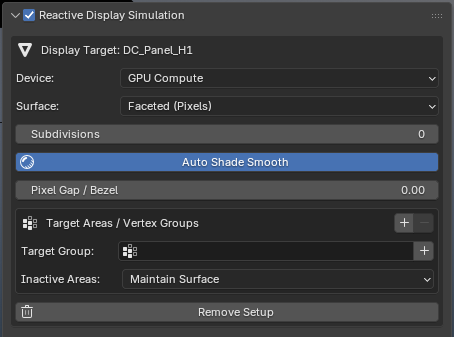
Display Target Setup
Display Setup on Active Object: Converts the currently selected mesh into an active reactive display target. Reactive Surface FX automatically initializes the procedural modifier stack, attaches the internal attribute data-bus (
display_color,display_dist, etc.), and non-destructively injects emission shader nodes into the object’s active materials.Proximity Driver Detection: If an object is already functioning as a driver for another display in the scene, the panel identifies its role and provides an instant one-click option to convert it into a display target.
Master Enable Toggle: The checkbox in the panel header allows instant A/B simulation comparisons without altering any underlying properties or removing modifiers.
Remove Setup: Cleanly strips all procedural modifier stacks, attribute definitions, and shader injection nodes, instantly restoring the mesh to its original state.
Compute Device: GPU Compute vs CPU
The Device selector determines the spatial compute engine used for proximity, canvas painting, and attribute processing:
GPU Compute (
HYBRID_SPEEDUP) (Recommended): Uses Blender’s native hardware-accelerated compute shaders and C++ Geometry Nodes dependency graph. This offloads texture canvas brush stamping and decay evaluation directly to your graphics card (VRAM) using GLSL compute shaders, delivering fluid real-time playback at 60+ FPS even with high canvas resolutions and dense scenes.CPU only (
LEGACY_CPU): Evaluates proximity and trails entirely through vectorized NumPy routines on the CPU. Ideal as a compatibility fallback for headless command-line rendering or environments where GPU compute shaders are unavailable.
Surface Calculation Modes
The Surface dropdown defines how incoming proximity is calculated and rendered across the target mesh:
1. Faceted (Pixels) Mode
Identifier:
FACESBest for: Digital billboard displays, LED matrices, flip-dot panels, architectural facades, and mechanical pinscreens.
Behavior: Each polygon face acts as an independent pixel or physical tile evaluated at its geometric center. All points on the face receive uniform illumination, color, or physical displacement.
Procedural Bezel & Pixel Gaps
When Faceted mode is selected, procedural bezel controls appear:
Pixel Gap / Bezel (Slider
0.0–0.5): Procedurally shrinks individual pixel faces toward their centers, creating sharp physical separations between adjacent display tiles.Fill Pixel Gap: Generates true in-between bezel geometry filling the gaps between tiles.
Gap Material: Assigns a custom material (e.g. matte dark rubber, brushed metal, or circuit board) specifically to the filled bezels.
Non-Destructive Subdivision
The Subdivisions control (0 to 5) allows you to increase display element density on the fly without applying modifiers or altering base geometry:
Catmull-Clark: Smoothly rounds and curves the geometry based on surrounding topology.
Simple: Linearly subdivides faces without altering curvature, preserving crisp flat display panels.
Auto Shade Smooth: Automatically applies normal angle smoothing across the display surface.
2. Smooth Vertices Mode
Identifier:
SMOOTH_VERTICESBest for: Organic surfaces, soft lighting effects, undulating terrains, and dense cinematic meshes.
Behavior: Proximity calculations are evaluated per-vertex, producing continuous Gouraud gradients smoothly interpolated across polygon surfaces. Combines seamlessly with Blender’s smooth shading to produce perfectly rounded, continuous lighting fields without polygonal faceting.
3. Dynamic Texture Canvas Mode
Identifier:
TEXTURE_CANVASBest for: Highly detailed graphic stamps, fluid trails, laser writing, permanent paint rosettes, and complex UV-mapped objects without high polygon counts.
Behavior: The display mesh acts as a high-resolution UV canvas. Drivers paint directly onto an internal dynamic texture in real time, eliminating the need for dense mesh subdivision while delivering pixel-sharp detail.
Canvas Resolutions
512 × 512: Fast performance and minimal memory footprint.
1024 × 1024: Balanced quality for interactive viewport work.
2048 × 2048: Crisp, sharp trails for 1080p and 4K renders.
4096 × 4096: Ultra-high definition for extreme close-up shots.
Continuous Stroke
When Dynamic Texture Canvas is active, the Continuous Stroke checkbox appears:
Enabled (Checked) (Default): Automatically connects consecutive driver contact points with smooth interpolated brush stamps between animation frames. This produces unbroken, fluid paintbrush strokes, smooth ribbon trails, and continuous calligraphic writing, even when the driver moves rapidly across the canvas.
Disabled (Unchecked): Disables inter-frame interpolation, stamping only at the instantaneous driver contact location on each frame. This is ideal for discrete effects such as separate character footsteps, bouncing balls, falling raindrop splashes, or stroboscopic bullet impact trails.
Target Geometry Masking (Vertex Groups)
The Target Areas / Vertex Groups section restricts reactive simulation and physical transformations to designated zones of a single mesh using Blender’s native Vertex Groups.
Multi-Area List
Use the + and - buttons to assign one or more vertex groups from the active object.
Each entry features an animatable Enabled Checkbox: you can keyframe active and disabled zones across your timeline to reveal different portions of the display dynamically.
Inactive Area Mode
When vertex group masking is active, choose how faces outside active groups behave via Inactive Area Mode:
Maintain Surface (Default): Non-target faces remain visible, solid, and dormant at their standard rest scale. Ideal for electronic devices where the screen occupies only a portion of a larger unreactive chassis or monitor enclosure.
Hide Inactive Area: Non-target faces are completely collapsed and hidden from view. Ideal for circular bicycle wheel spoke displays, hollow LED cylinders, or irregularly shaped floating holographic panels.